Use Labcat
Ask a question, compare cited candidates, and keep related work together. Start with Install & setup if this is your first launch. Numbered outlines identify the controls; click any screenshot to enlarge it.
Find your way around
- New chat starts a separate conversation.
- Create project groups related chats and their pinned reports.
- Search workspace finds saved names, messages and reports locally.
- Connections, Search Criterion and Report Format manage accounts, research preferences and presentation. The setup guide shows how to connect or change a model.
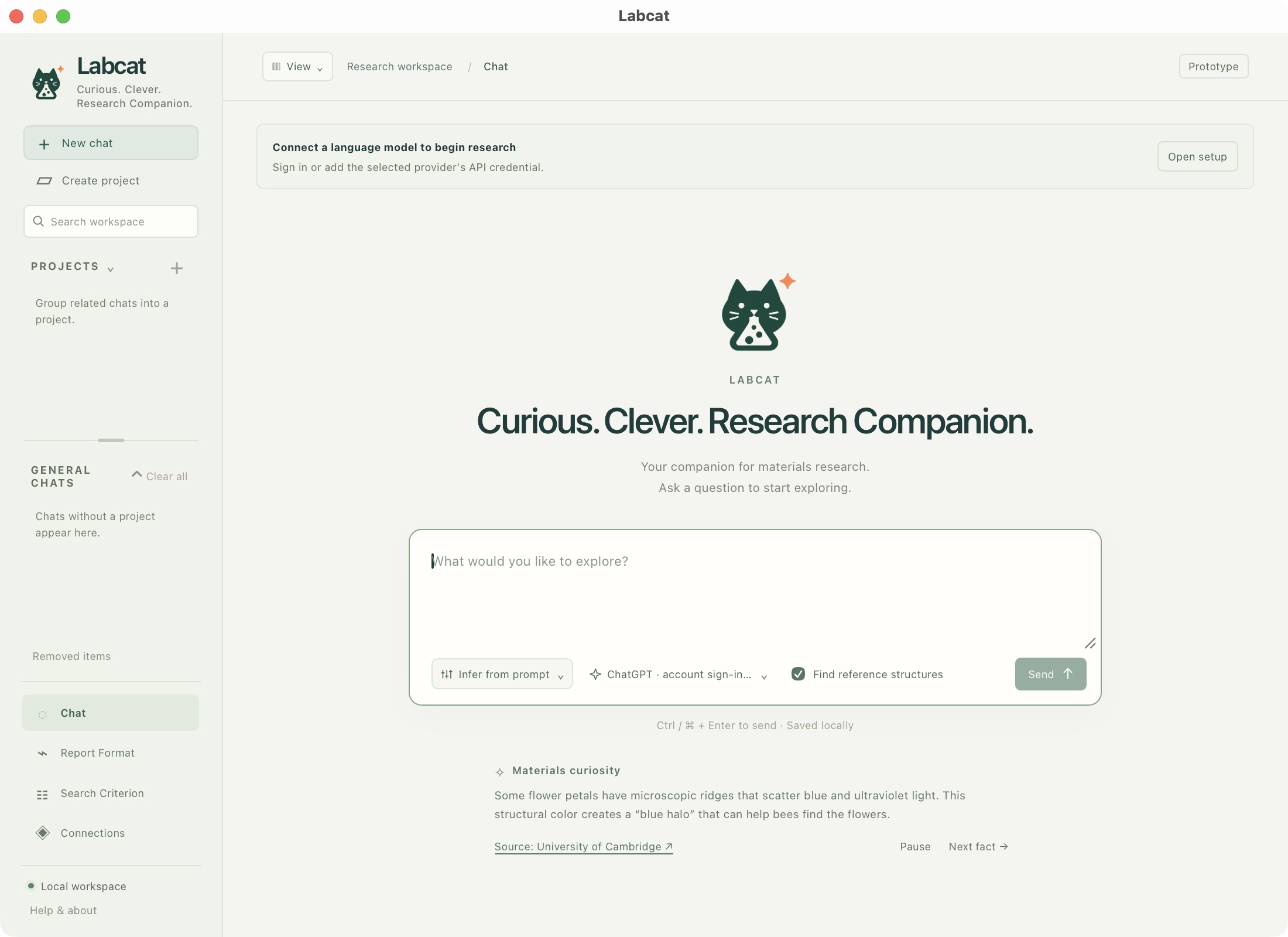
1. New chat. 2. Create project. 3. Search saved work. 4. Report Format, Search Criterion and Connections.
In Create project, enter a name and an optional description, then select Create project. The new project includes an empty chat ready for a question.
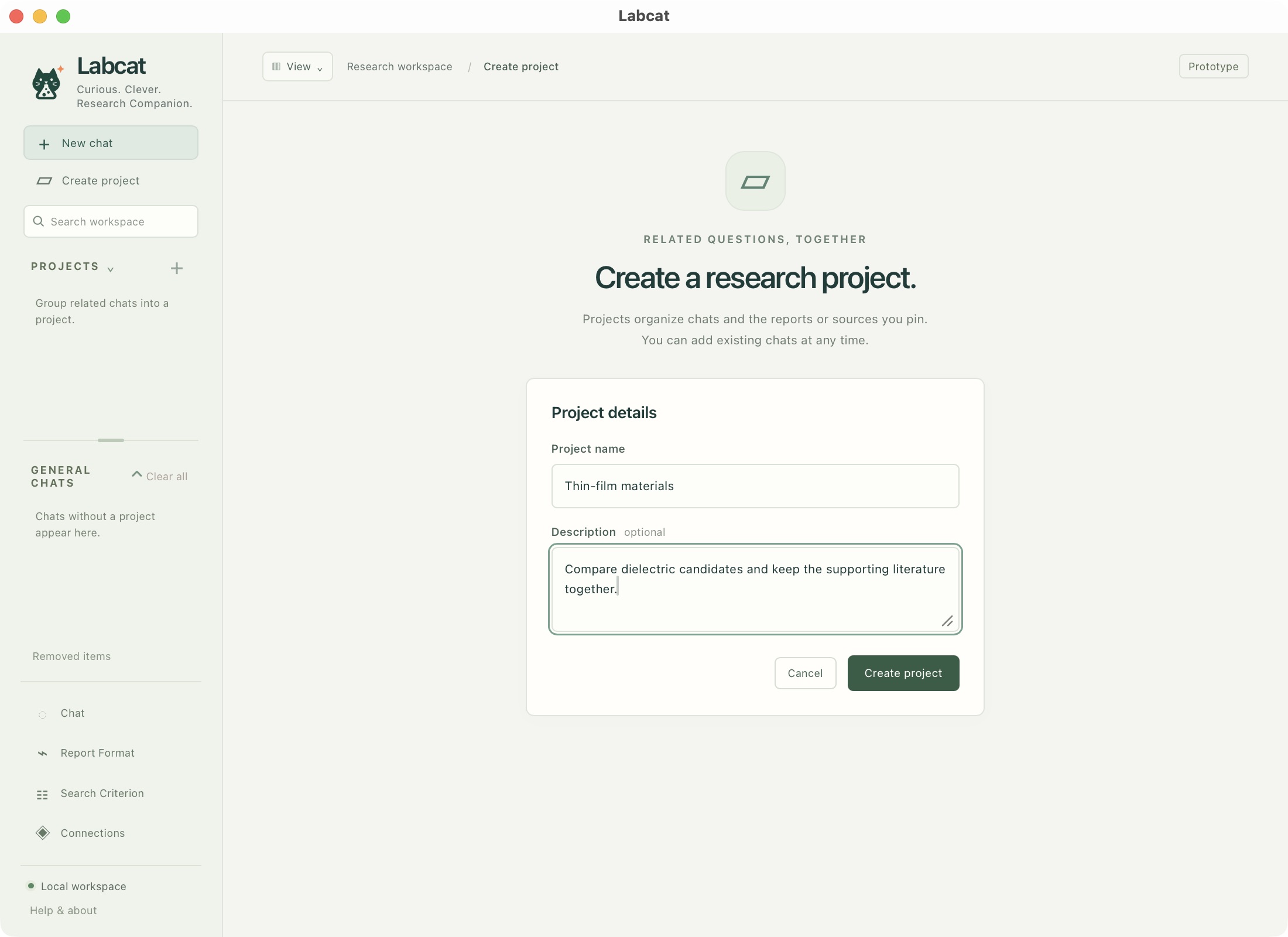
1. Name the project. 2. Add an optional description. 3. Create the project.
Ask a useful question
Describe the material's role, the properties you care about, and operating conditions. See the example prompts for starting points.
- Enter your question in the prompt box.
- Leave Infer from prompt selected for automatic priorities, or choose a saved profile. A manual selection takes precedence over inference.
- Check the connected model and keep Find reference structures checked if you want structure discovery.
- Click Send, or press Command + Enter / Ctrl + Enter.
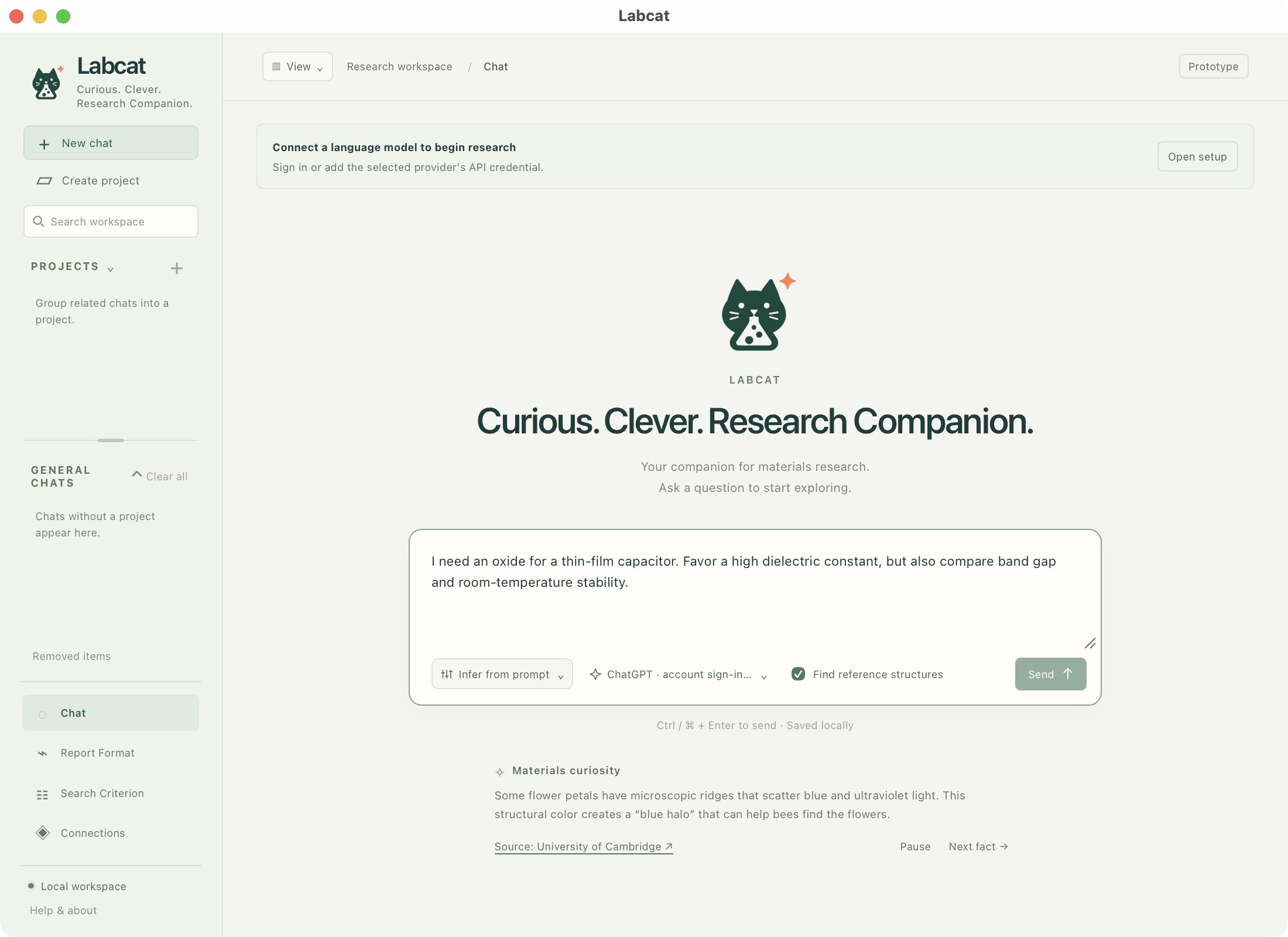
1. Write the research question. 2. Choose automatic or saved criteria. 3. Check model and reference-structure lookup. 4. Send after connecting.
This setup screenshot is before sign-in; sending requires a ready connection.
A running chat is marked by a flask. You may switch chats while research continues. Keep the backend running: stopping it interrupts unfinished work. Follow-ups in the same chat retain earlier questions and saved report revisions.
Choose criteria and change their influence
Open Search Criterion from the sidebar. Choose an existing Ranking profile, or select New ranking profile and give it a name. Presets are editable starting points, not material recommendations.
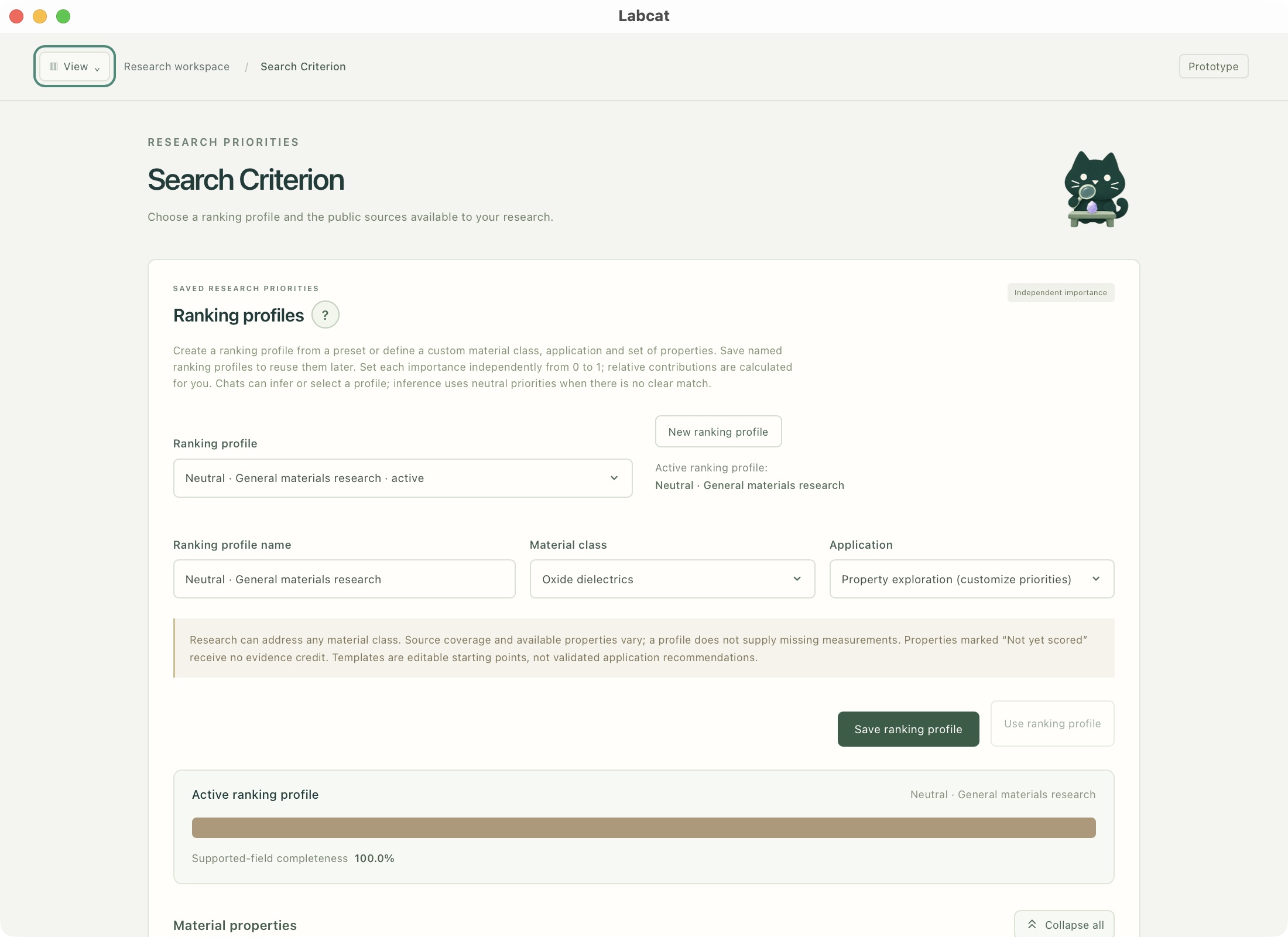
1. Select a saved profile. 2. Start a new profile. 3. Edit the name and preset. 4. Save; optionally make it the workspace default.
Scroll to Material properties. Select the properties you need and adjust each importance from 0 to 1 with a slider or number field. Values need not add to one; the preview shows their relative contribution. Keep at least one positive importance. Return to Save ranking profile, then select its name in the prompt's ranking control. Use ranking profile changes the workspace default.
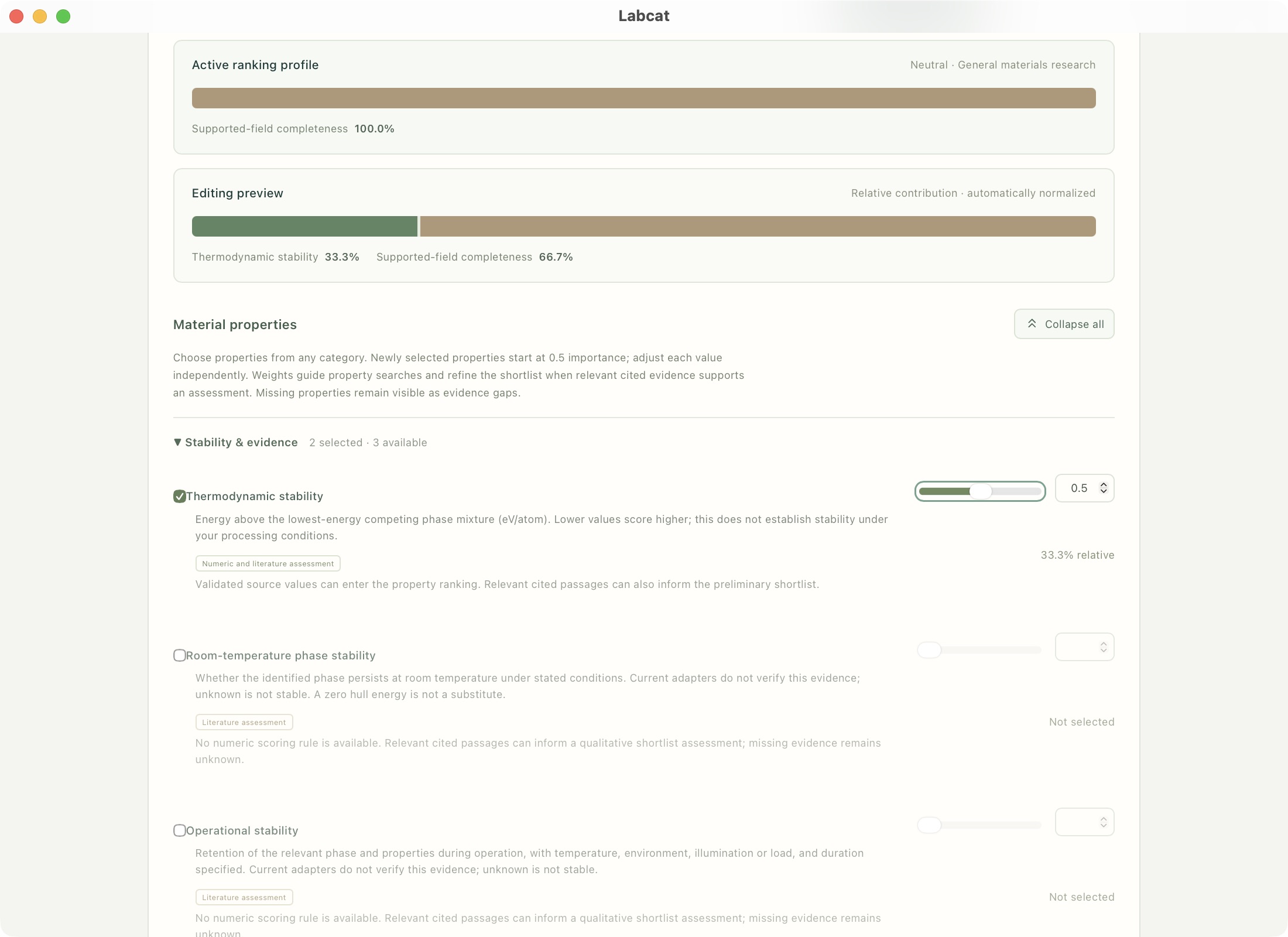
1. Include a property. 2. Set its importance. 3. Check the normalized preview. These are illustrative preferences.
Automatic inference uses neutral exploration preferences when it cannot identify a class or application. Check the profile recorded in each report. Changing weights affects future research, not previously saved evidence; missing properties remain missing. See Sources & methods.
Read, compare and export
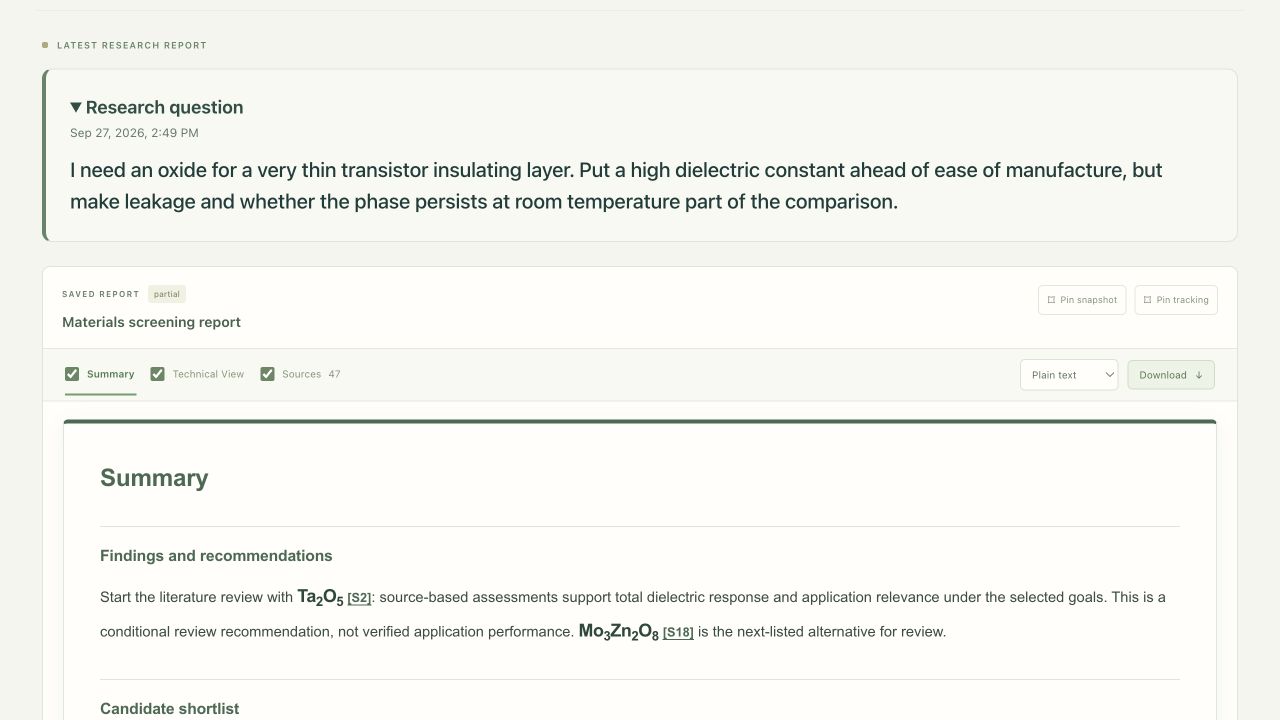
1. Switch views and choose export sections. 2. Choose an export type and download. 3. Pin a fixed snapshot or track the latest report.
Start with Summary for the shortlist, Technical View for detailed assessments and comparisons, and Sources for the saved references. Expand long explanations with Read more; Show less collapses them again.
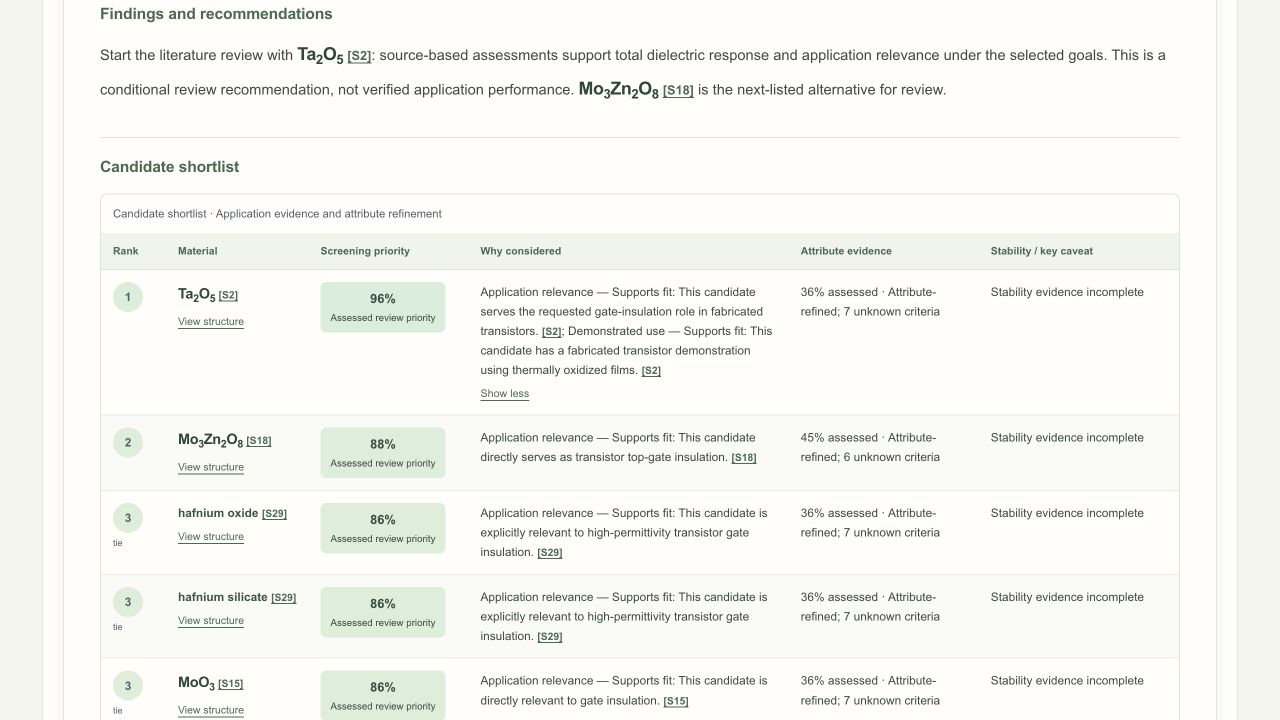
1. Expanded explanation and Show less. 2. Open a candidate’s structure panel.
Check material identity, phase, sample conditions and missing evidence alongside the ranking. Screening percentages indicate review priority, not confidence or measured performance. A partial report retains useful findings with explicit gaps.
For an export, check the desired report sections, choose Plain text, JSON, PDF or Word (.docx), and select Download. Keep Sources selected for citations. Exports use saved content without rerunning research.
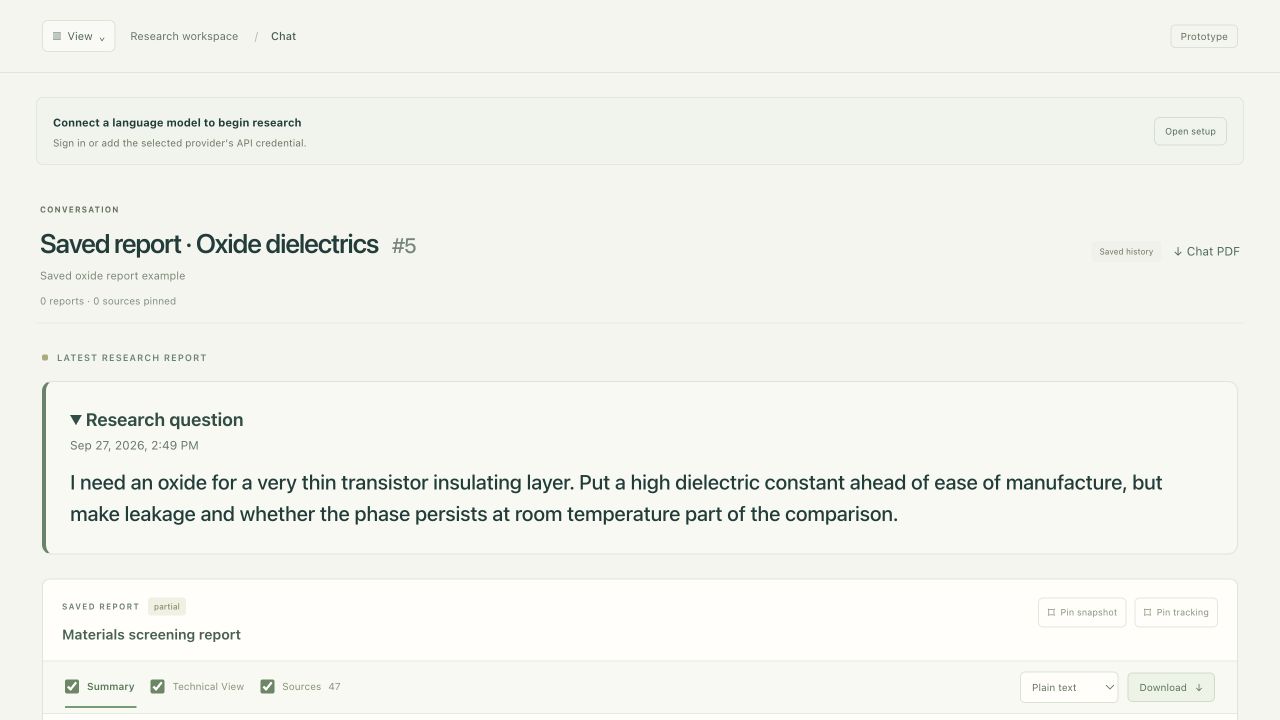
1. Download complete chat history. 2. Research question and original timestamp.
Chat PDF exports the complete saved conversation, including earlier questions and report revisions. For project chats, Pin snapshot keeps a fixed report revision; Pin tracking follows the latest completed report.
The report screenshots show a genuine partial oxide report generated on
27 September 2026 with ChatGPT gpt-6-astra, reopened in the current interface.
The saved evidence and timestamps were preserved; these captures are not a new
research run or a guarantee of the same results.
Inspect a structure
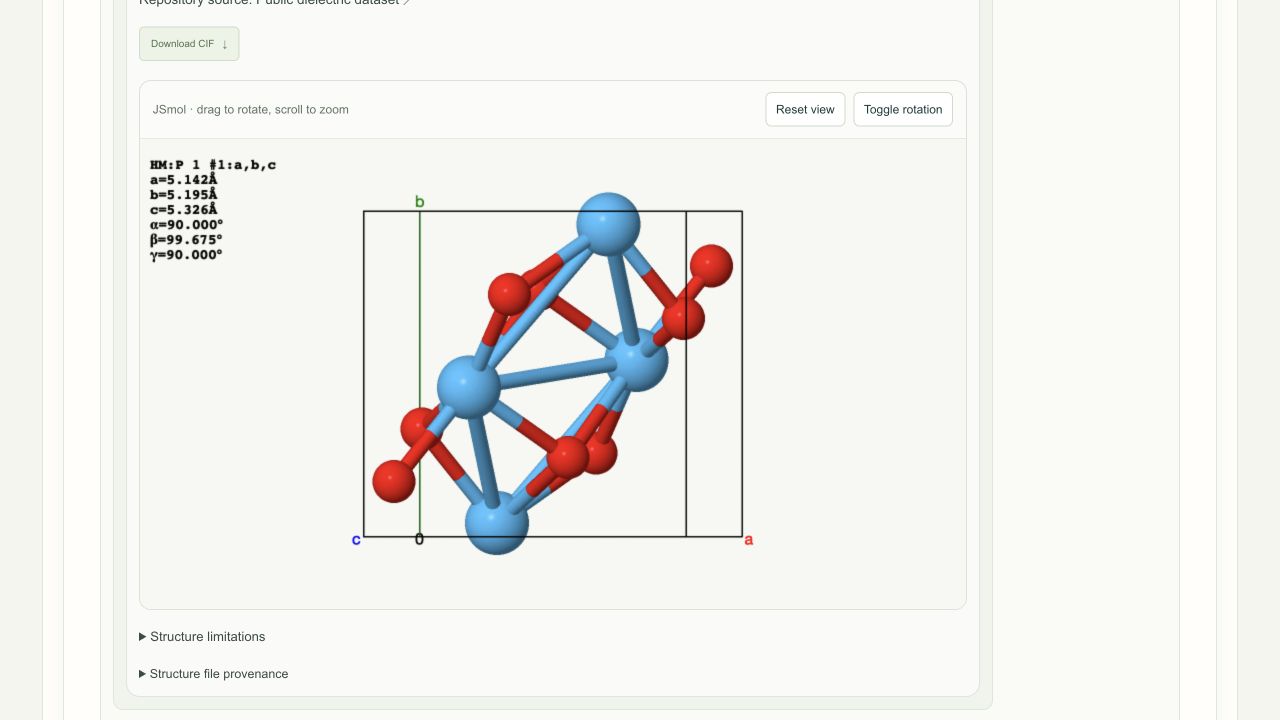
1. Download CIF. 2. Reset view or toggle rotation. 3. Read structure limitations and file provenance. The HfO₂ reference shown was retrieved from the public dielectric dataset; its phase match to the cited application is unverified.
In a shortlist, choose View structure and select an available record. Drag in JSmol to rotate; scroll to zoom. Reset view restores the initial view. Use Download CIF for available validated geometry.
Read the source and phase label. A reference may match composition without matching the report's phase or sample. Separate core/shell component structures are bulk references, not an assembled interface. Missing matches stay unavailable. See the resource list and JSmol acknowledgement.
Change report appearance
Open Report Format in the sidebar to change report verbosity, terminology, export type and document appearance.
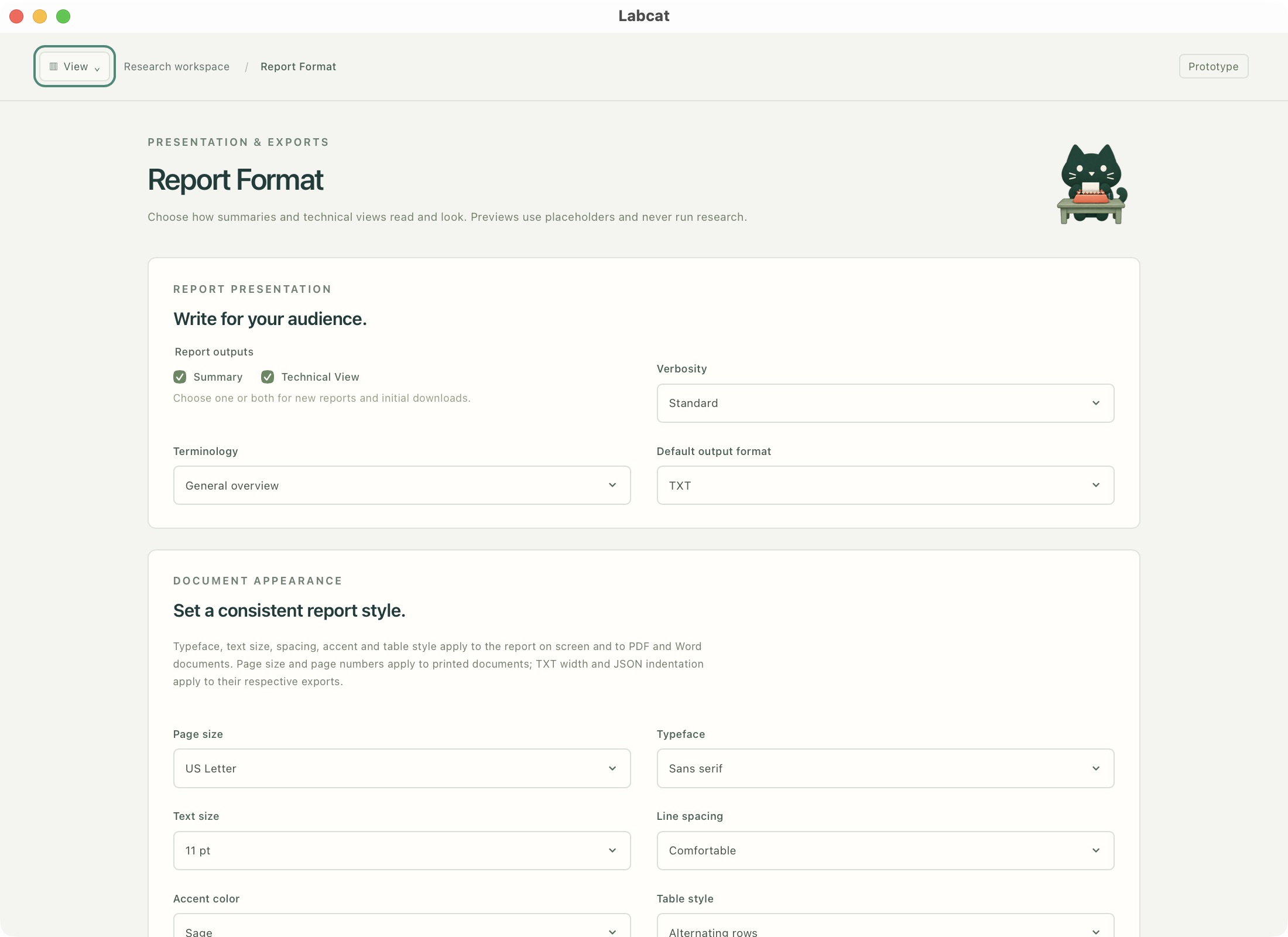
1. Choose report views. 2. Set verbosity. 3. Choose terminology and default export type.
Scroll down and choose Save report format after making changes. The template preview contains placeholders, not research results. Formatting does not change the saved evidence or ranking; pinned snapshots keep their recorded format.
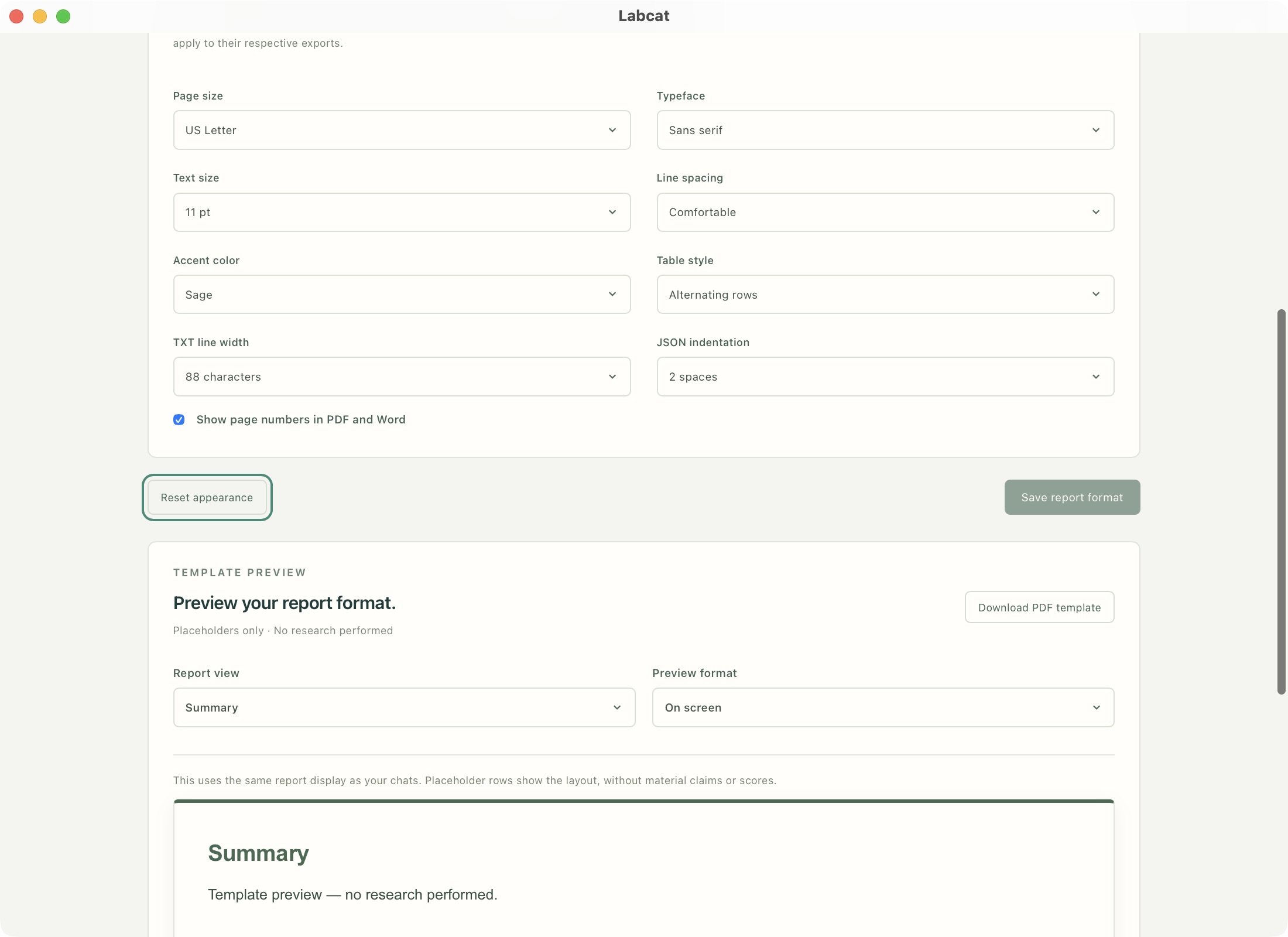
1. Adjust document appearance. 2. Save changes. 3. Inspect the placeholder preview or download its PDF template.