Calibration
Documentation notice
This documentation was generated with help from a large language model and has not been fully vetted by the developer. Verify critical details against the source code and current application behavior.
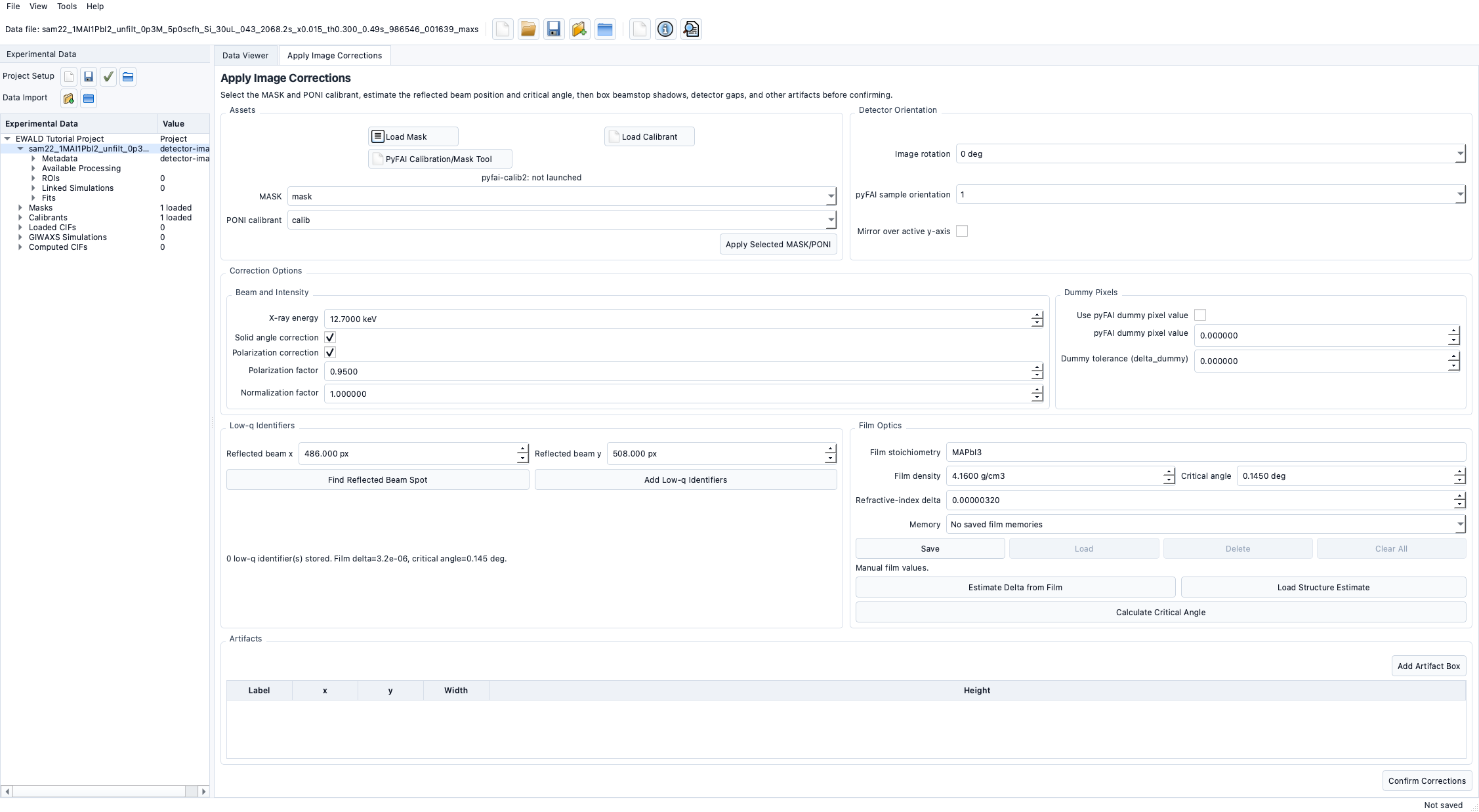
Calibration in EWALD includes pyFAI geometry setup and correction parameter selection.
pyFAI-calib2 / pyFAI integration
- EWALD launches pyFAI-calib2 through a managed launcher in
Tools. - The launcher prevents duplicate live processes.
- Selected PONI calibration assets are then used in correction and mapping.
Launch from EWALD
Open:
Tools→ PyFAI Calibration/Mask Tool- Set/confirm detector geometry and save a
.ponifile. - Import or reload the calibrant in EWALD as a correction asset.
Avoiding duplicate launches
EWALD uses a process guard; a second launch click while pyFAI is running will be ignored and surfaced as a status notification.
Launch from Data Viewer context
- The launcher is shared for workflows that already have an active project target.
- Use this when the selected geometry needs quick refinement.
Downstream usage
The selected PONI is part of the correction state for each confirmed data target. This state gates opening downstream tabs in the right panel.
Common issues
- Missing
pyfai-calib2in PATH: install or activate an environment where it is available. - Wrong target orientation: check rotation/mirror settings after calibration.
- Unconfirmed correction state: downstream tabs remain disabled until confirm.