Data Loading
Documentation notice
This documentation was generated with help from a large language model and has not been fully vetted by the developer. Verify critical details against the source code and current application behavior.
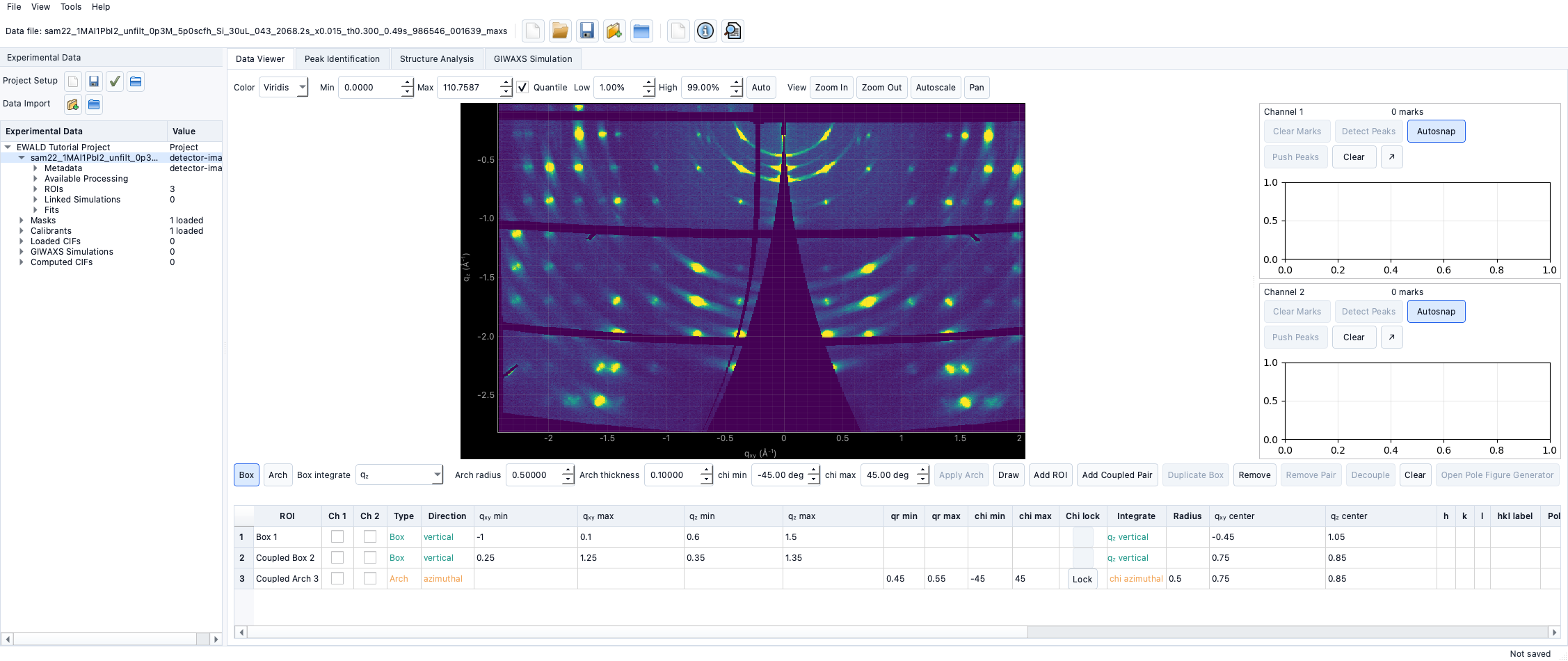
EWALD currently supports TIFF detector images for direct loading.
Supported input formats
- Primary image extensions:
.tif,.tiffonly. - Import supports:
- Single file
- Folder import (all supported files in folder)
Expected image and data formats
- Images should be detector frames with consistent geometry for grouped imports.
- YAML sidecars can add metadata in key/value mapping format.
Metadata requirements
EWALD infers metadata from:
- Filename tokens (delimiter-based, default
_) - TIFF header fields
- Optional metadata sidecar file
Common parsed values include:
- sample labels
- exposure and time values
- tokenized experimental descriptors
Calibration files
- Calibrants are
.ponifiles loaded as correction assets. - For a given dataset, PONI files are tied through the correction state before analysis.
Mask files
- Mask assets are loaded from supported array-like files.
- Supported mask inputs include TIFF files that can be interpreted as binary-like masks.
Detector geometry
- Geometry is defined by selected PONI and image orientation settings.
- The project stores the selected geometry per target.
Import errors and how to recover
- Unsupported extension: convert/rename files to
.tif/.tiff. - Folder empty / mixed types: check that the folder contains supported extensions.
- Metadata parse issues: use manual metadata table and sidecar values for missing fields.
- Sidecar parsing failure: validate YAML as a mapping.
Minimal import recipe
- Start a project.
- Import a file or folder.
- Review inferred metadata and confirm values.
- Continue to corrections and Data Viewer.