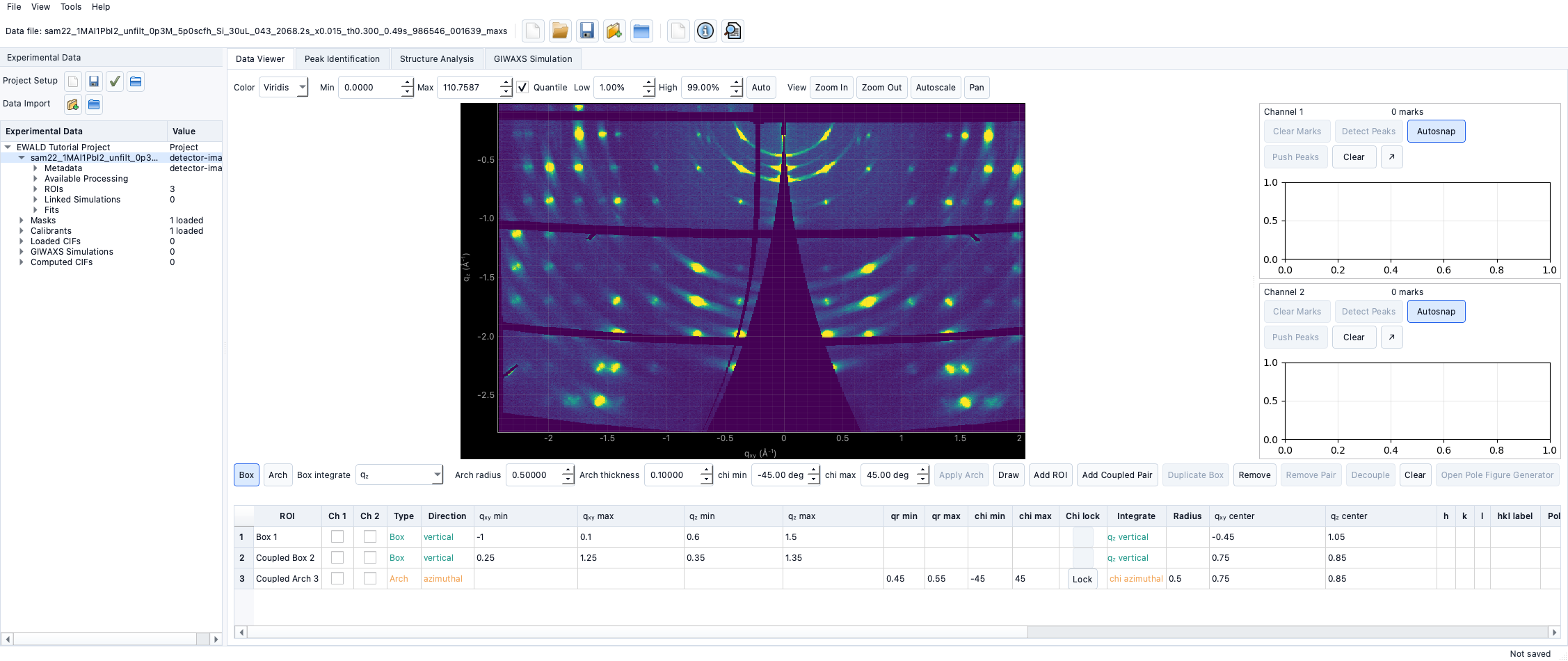
User Interface Overview
Documentation notice
This documentation was generated with help from a large language model and has not been fully vetted by the developer. Verify critical details against the source code and current application behavior.
EWALD is organized around the active project target (file or group).
Main window layout
The main window has:
- Left project dock:
.ewldproject actions (New/Open/Save/Save As).Experimental Datatree.- Correction asset panels (MASK and PONI).
- Main dock workspace with tabbed workflow views.
- Tool launch actions (PyFAI calibration, GIWAXS simulation, pole figure tool).
Tabs and panels
- Project / Data context (left pane)
- Apply Image Corrections
- Data Viewer
- Peak Identification
- Structure Analysis
- GIWAXS Simulation
- Assets and launchers are available from toolbar/menu actions.
Workflow tab behavior
EWALD keeps workflow order explicit:
- Import data into an active project.
- Configure image corrections.
- Confirm corrections.
- Continue with downstream tabs that depend on corrected data.
Data Viewer
Primary functions:
- Display corrected image in reciprocal space.
- ROI creation, movement, and editing.
- Channel-specific overlays and scaling controls.
Peak Identification
- Load, add, and edit peak markers on corrected data.
- Sync points to active ROIs.
Peak Fit
- Compute and fit line traces in
q<sub>xy</sub>,q<sub>z</sub>, and azimuthal directions. - Save fit metrics back into per-target analysis state.
Structure Analysis
- Import fitted peaks.
- Assign phase labels and phase tags.
- Generate candidate structures and rank fits.
Simulation tool
- Run and inspect GIWAXS simulations.
- Compare simulated images to data visually.
- Export/replay and cache simulation results.
Film optics and corrections options
Located in Apply Image Corrections:
- Film stoichiometry and density.
- Saved film material memory.
- Refractive estimate helpers.
- Correction asset tracking and low-q markers.
Detector orientation
Image rotation and optional mirror options are applied before map integration. These values are carried into downstream orientation handling and q-space mapping.
Tool launchers
- PyFAI-calib2 launcher: separate external calibration helper.
- Pole Figure Generator: selected-ROI specific plotting and export.
- GIWAXS Simulation: main workflow tab for structure loading, presets, simulated patterns, and data-linked fit comparisons.